Saving and publishing
Your work saves itself
Section titled “Your work saves itself”The editor saves your changes a few seconds after you make them. The top of the editor shows Unsaved changes while it is waiting, and Autosaved with the time once done.
Saving doesn’t put anything on your website. A page only changes for visitors when you publish.
Publishing
Section titled “Publishing”- Publish puts a new page on your site.
- Publish changes makes your edits to a page that is already on the site go live.
- Save draft saves without publishing. On a published page, visitors keep seeing the old version until you click Publish changes.
Beside the buttons, a label shows whether the page is Published or a Draft.

Previewing
Section titled “Previewing”Preview opens the page in a new tab exactly as it will look once published, including changes you haven’t published yet. View live shows the page as visitors see it now.
Taking a page off the site
Section titled “Taking a page off the site”- Unpublish takes the page off your site and keeps it as a draft.
- Discard changes throws away unpublished edits and goes back to the live version.
Going back to an earlier version
Section titled “Going back to an earlier version”Every time you save, the editor keeps a copy. To go back:
- Click Revisions on the left side of the editor.
- Find the version you want. Preview shows it in a new tab.
- Click Restore. The page in the editor goes back to that version.
- Click Publish changes to put it on the site (or keep editing first).
Restoring can be undone with the undo arrow, so it is safe to try.
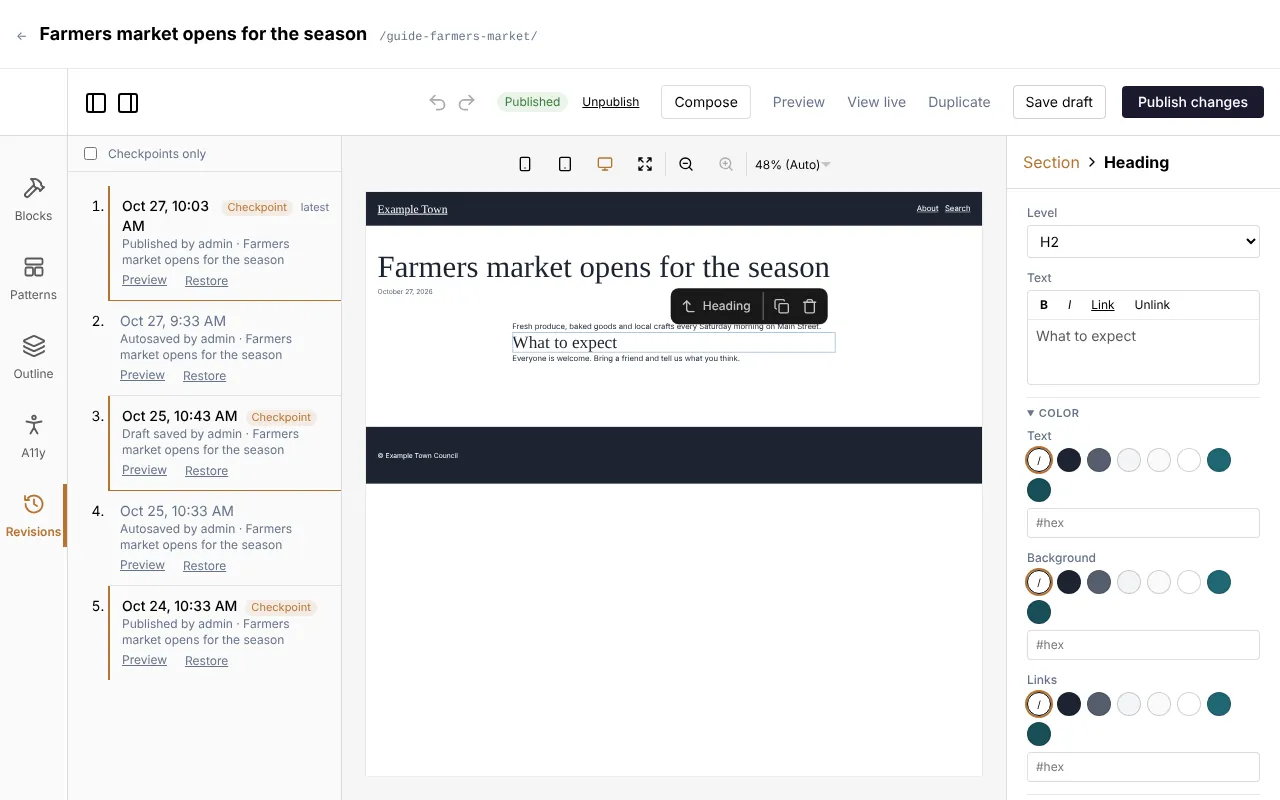
Versions you saved yourself are marked Checkpoint; automatic saves are listed between them. Tick Checkpoints only to hide the automatic ones.
Leaving the editor
Section titled “Leaving the editor”If you try to leave with changes that aren’t saved yet, a box asks what to do: save them, leave without saving, or stay.
When two people edit the same page
Section titled “When two people edit the same page”If someone else saved the page after you opened it, the editor tells you before you save over their work. To be safe, reload the page to see their version first.