Site guide
This guide is for the people who keep a site up to date day to day. You don’t need to know anything about websites or code to follow it. Each page walks through one job, step by step.
The ? button at the top of every admin screen brings you back here.
Signing in
Section titled “Signing in”- Go to your site’s address and add
/admin/to the end, for examplewww.yoursite.org/admin/. - Enter your email address and password, then click Sign in.
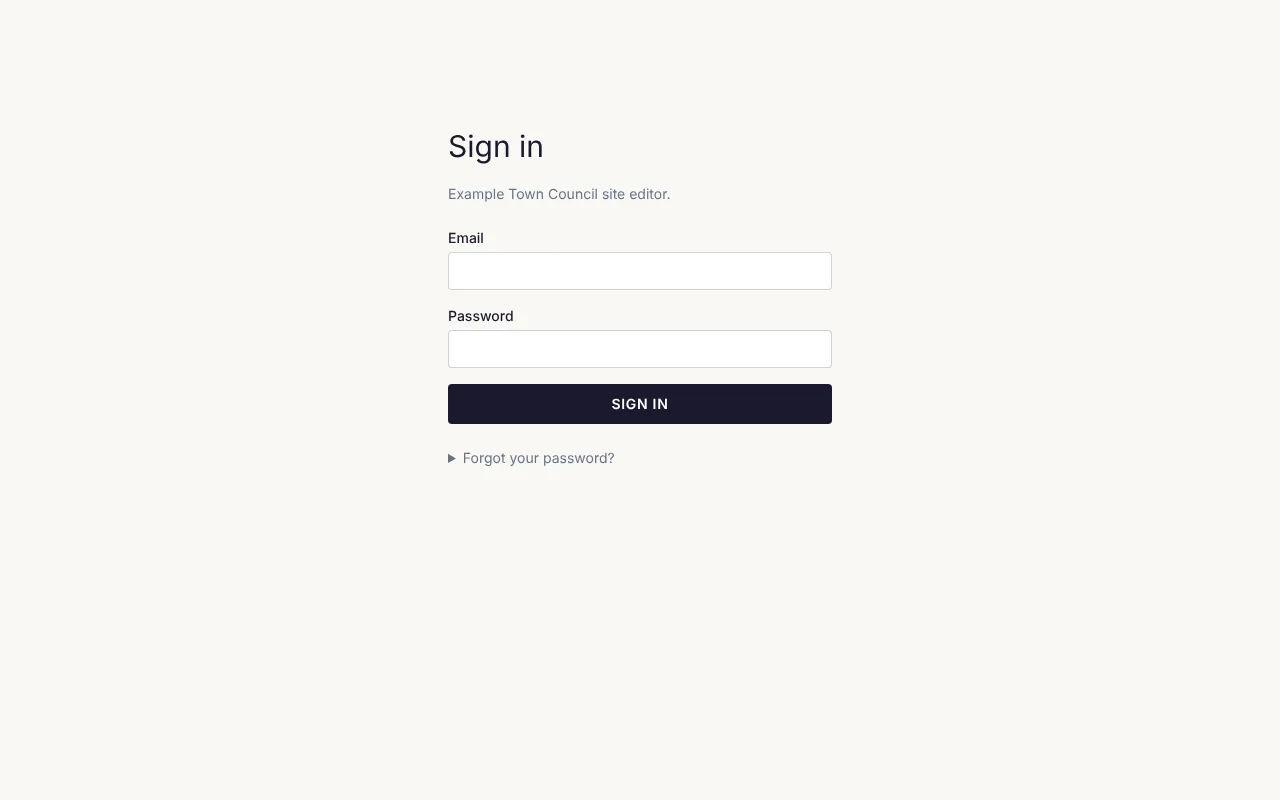
Forgot your password? Click Forgot your password? on the sign-in screen, enter your email address and click Send link. An email arrives with a link to set a new password. The link works once and only for an hour, so use it soon.
New here? Someone at your organisation sends you an invitation by email. Click the link in it and choose a password. The invitation lasts a week; if it has run out, ask them to send a new one.
To sign out, click your name in the top right corner, then Sign out.
Finding your way around
Section titled “Finding your way around”The dark bar across the top of every admin screen takes you to each part of the site:

| Menu item | What it is for |
|---|---|
| Content | Your pages, posts and anything else the site lists, such as events. |
| Templates | The shared layouts every page uses, such as the header and footer. |
| Media | Your photos, images, videos and documents. |
| Forms | Contact forms, sign-up forms and the like. |
| Submissions | What people sent through your forms. |
| Tickets | Ticket sales and sign-ups for events (only when events are turned on). |
| Mailing Lists | Email newsletters (only when mailing lists are turned on). |
| Settings | Site-wide settings, such as the menu. Admins only. |
| Users | Who can sign in to look after the site. Admins only. |
View site opens your public website in a new tab, so you can see your changes as visitors will.
Editors and admins
Section titled “Editors and admins”There are two kinds of account:
- Editors look after the content: pages, posts, events, images, forms and submissions.
- Admins can do everything editors can, and also change site-wide settings, the menu and who has access.
If you can’t see something this guide mentions, it is probably for admins, or a feature your site doesn’t use.
What’s in this guide
Section titled “What’s in this guide”- Pages and posts: adding, finding and organising content.
- Using the page editor: changing what is on a page.
- Saving and publishing: drafts, publishing and going back to an earlier version.
- Images and files: uploading and describing images.
- Forms: building forms and reading what people send.
- Writing with Claude: having pages drafted for you from your documents.
- Accessibility: making sure everyone can use your pages.
- Events and tickets: listing events and selling tickets.
- Menu and settings: for admins.
- People and access: for admins.
- Common questions: quick answers when something isn’t working.