Pages and posts
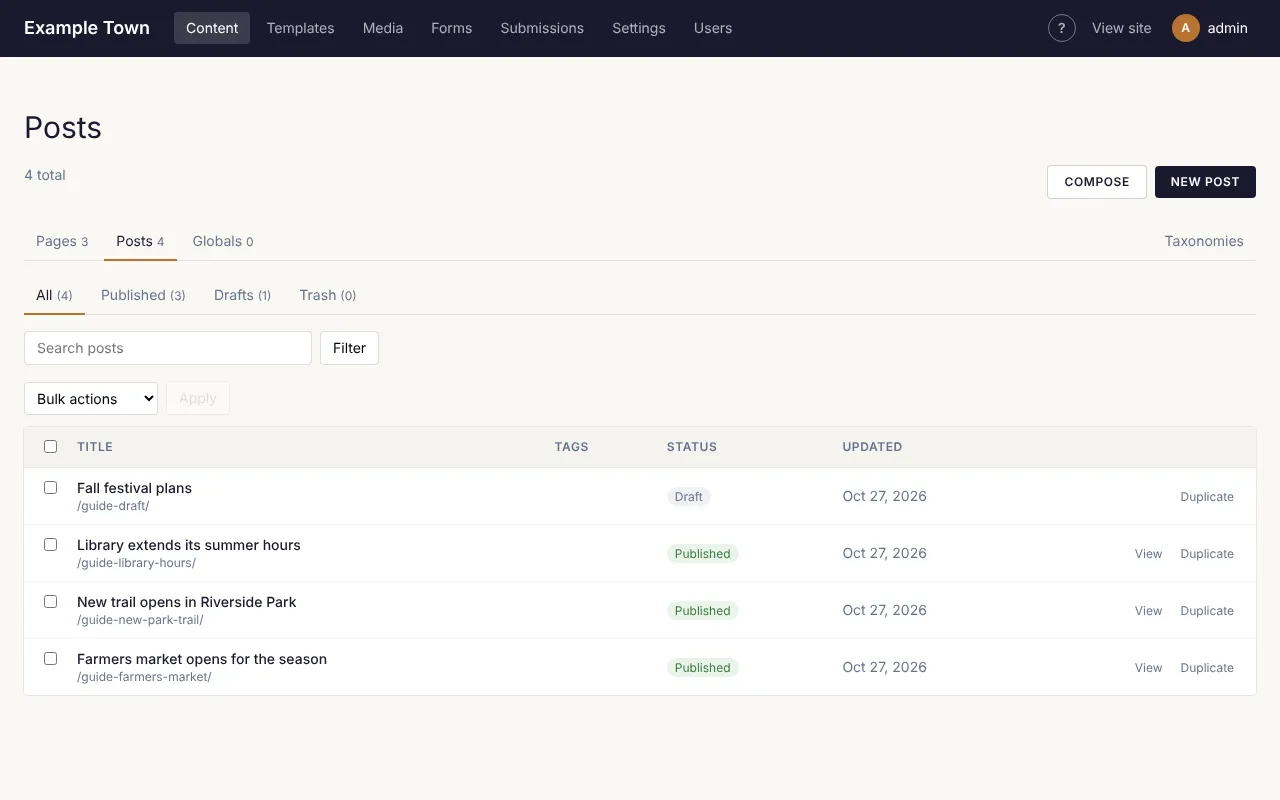
Everything on your site lives under Content in the top bar. Across the top of that screen is a tab for each kind of content your site has, such as Pages, Posts or Events. The number beside each tab is how many there are.
Adding a new page or post
Section titled “Adding a new page or post”- Click Content, then the tab for the kind of thing you want to add (for example Pages).
- Click the New button in the top right (it says New Page, New Post and so on).
- The page editor opens with an empty page. Type a title in the Title box on the right.
- Add what you want on the page (see Using the page editor).
- Click Publish when it is ready for visitors, or leave it as a draft for now.
Prefer to start from a document you already have? Use Compose instead of New. See Writing with Claude.
Finding something
Section titled “Finding something”- Search: type a few words in the search box above the list and press Enter.
- Status tabs: All, Published (on the site), Drafts (not on the site yet) and Trash (deleted, but not gone for good).
- Tags: if your site uses tags, pick one from the list beside the search box and click Filter.
Click a title to open it in the editor. View opens the page as visitors see it.
A row marked Unpublished changes is a published page with edits that aren’t live yet. Open it and click Publish changes when they are ready.
Making a copy
Section titled “Making a copy”Duplicate (beside each row, and at the top of the editor) makes a draft copy titled “(copy)” with its own address. It is a quick way to start a page that looks like one you already have.
Doing the same thing to several at once
Section titled “Doing the same thing to several at once”- Tick the box beside each one in the list.
- Pick an action from Bulk actions: Publish, Move to drafts, Move to trash, or add or remove a category or tag.
- Click Apply.
Deleting
Section titled “Deleting”Choose Move to trash (from the editor’s list, or a bulk action). The page comes off your site but isn’t gone: open the Trash tab, tick it and choose Restore to bring it back as a draft. Only Delete permanently, in the Trash, removes it for good.
Categories and tags
Section titled “Categories and tags”Categories and tags group related content, so visitors can find everything on one subject.
- Add tags to a page in the editor’s right-hand panel: type a tag and press Enter. New tags are made for you.
- Pick categories in the same panel.
- To rename, rearrange or describe them, go to Content and click the Taxonomies tab on the right. Drag a category by its handle to move it, or onto another to put it underneath.
Page addresses
Section titled “Page addresses”Each page has an address, shown in the editor beside its title (for example /about-us/). It is
made from the title when you first publish. You can change it in the Slug box in the editor’s
right-hand panel. If you change the address of a published page, the old address keeps working and
sends visitors to the new one.