Menu and settings
Settings (in the top bar, admins only) holds everything that applies to the whole site. Each tab covers one area. Changes take effect when you click Save settings.
The menu
Section titled “The menu”The Menu tab holds the links in your site’s main menu.
- Click Add menu item.
- Fill in the Label (the words people see, such as “Visit”) and the Link (the page’s
address, such as
/visit/, or a full web address for another site). - Use Up and Down to reorder items, and Remove to take one out.
- Click Save settings.
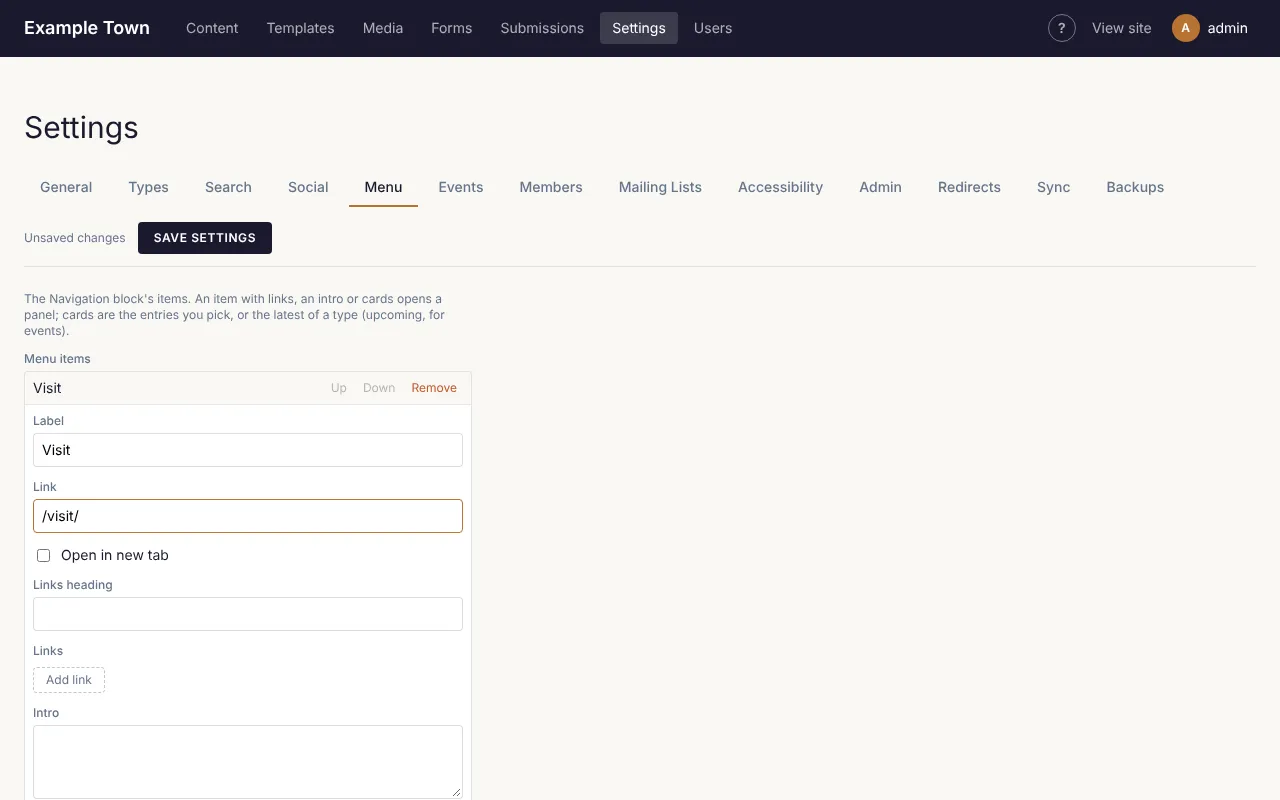
An item can also open a larger drop-down panel: add Links under a Links heading, a short Intro, or cards showing pages or the latest posts or events.
Other tabs
Section titled “Other tabs”| Tab | What it’s for |
|---|---|
| General | The site’s name, tagline, which page is the home page, and which page people see when an address doesn’t exist. |
| Types | Which layout (template) each kind of content uses. Usually set up once. |
| Search | Which kinds of content the site search covers. |
| Social | Your social media profiles (shown as icons) and the picture used when a page without its own image is shared. |
| Events | Turn events on or off, and the site’s time zone. |
| Members | Members-only pages and member accounts, if your site uses them. |
| Mailing Lists | Newsletter sign-ups and sending, if your site uses them. |
| Accessibility | Whether publishing waits for the accessibility check. |
| Admin | The colours and logo of these admin screens. |
| Redirects | Send visitors from an old address to a new one (see below). |
| Sync and Backups | Copying content between copies of the site, and backups. Usually left to whoever set up the site. |
Redirects
Section titled “Redirects”When a page moves or is deleted, people may still arrive at its old address from Google or old links. On the Redirects tab:
- Add a redirect from the old address (such as
/old-page/) to the new one. - The tab also lists addresses people tried that don’t exist, with Add redirect beside each, so you can catch broken links.
Changing a published page’s address adds a redirect for you automatically.
When a page isn’t found
Section titled “When a page isn’t found”Someone who follows a broken link sees a “page not found” page. To make your own:
- Make an ordinary page (for example “Sorry, we couldn’t find that”) with a friendly message, a search box and links to your main pages. Publish it.
- In Settings > General, choose it as the Not found page, then Save settings.
Search engines don’t list it. To go back to the standard one, set Not found page to Default.
Backups
Section titled “Backups”The site can back itself up every day (Backups tab). Each backup can be restored if something goes badly wrong. Restoring brings back pages and settings, not images, which are never deleted anyway. If you’re unsure, ask whoever set up your site before restoring.