Images and files
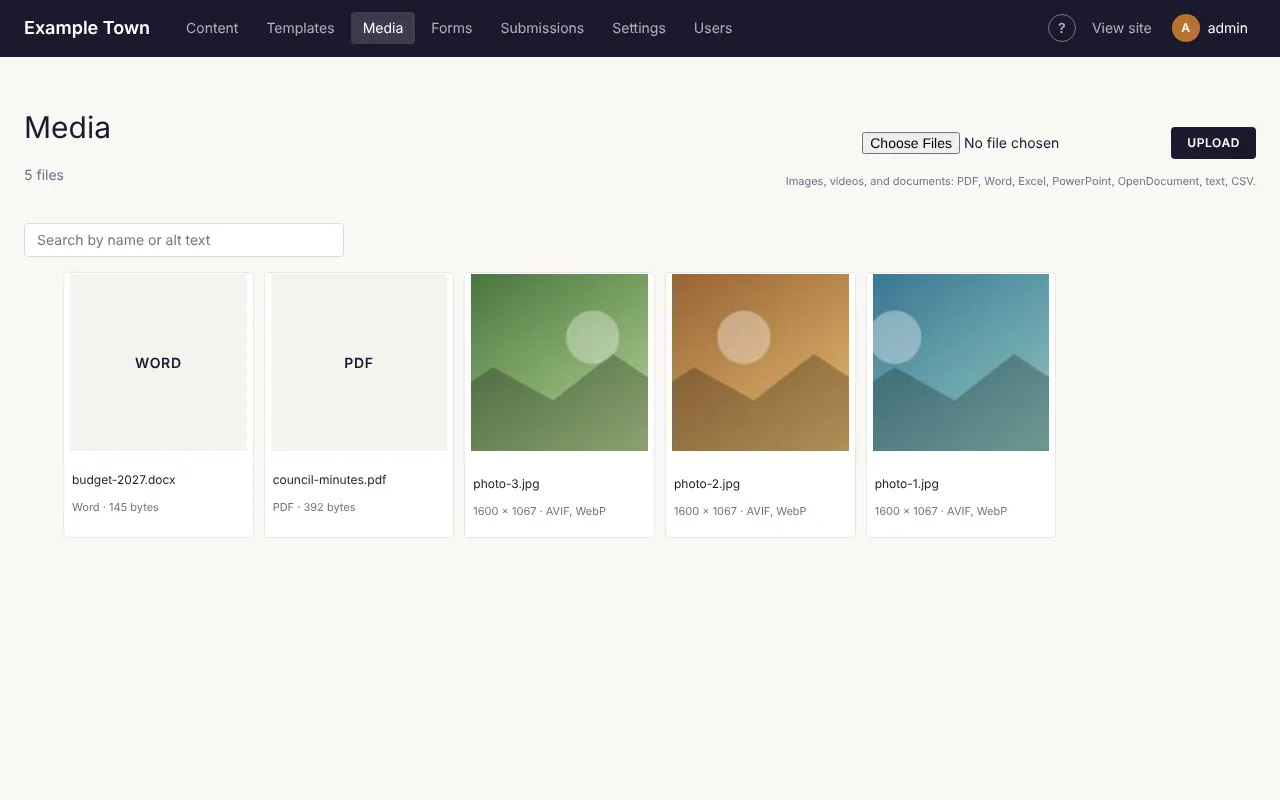
All your images live in Media, in the top bar. They can be used on any page.
Uploading an image
Section titled “Uploading an image”From the Media screen:
- Click Media in the top bar.
- Click Choose File and pick the image on your computer.
- Click Upload.
From the page editor: wherever you can add an image (an Image block, a Featured image, a Hero), click Choose. You can pick one already in the library or upload a new one there and then.
Describing an image (alt text)
Section titled “Describing an image (alt text)”Click an image in Media to open its details.
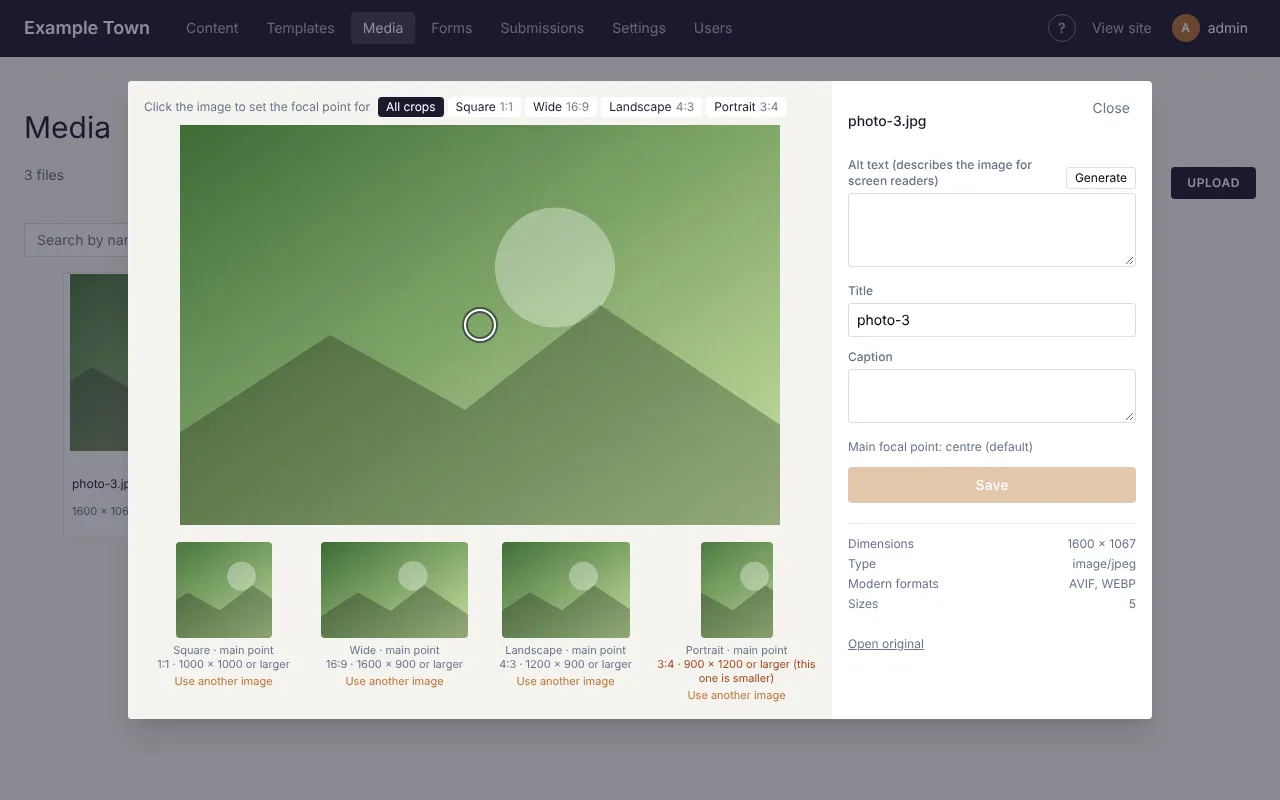
Alt text is a short description of the picture, read aloud to people who can’t see it and shown if the picture doesn’t load. Write what someone would need to know, for example “Children planting flowers at the community garden”. Leave it empty only for pictures that are purely decoration.
Not sure what to write? Click Generate beside the box. Claude looks at the picture and writes a description for you. Read it and change anything that isn’t right (it can’t know people’s names unless the title or caption says them), then click Save. Adding a title or caption first gives it more to go on.
Title and Caption are optional. Click Save when done.
Keeping the important part in view
Section titled “Keeping the important part in view”Pictures are often cropped to fit, for example into a square on a list of posts. To choose which part always stays in view, click on the most important part of the picture (a face, a building). The small previews underneath show how each crop will look.
Under each preview is its shape (for example 16:9, wide like a TV screen) and the smallest picture that fills it sharply, such as 1600 × 900 or larger. If it says this one is smaller, that crop may look a little blurry on big screens: use a larger photo, or Use another image for that shape.
If one crop still doesn’t work, for example a wide photo that looks wrong as a square, click Use another image under that preview and pick a different picture to use only for that shape.
Focal points for one block
Section titled “Focal points for one block”The Hero, Cover and (when cropped) Image blocks can have their own focal point for each screen size. Select the block, then under Focal point pick Desktop, Tablet or Phone and click the picture. The small preview beside it shows how it will be cropped on that screen. A size you don’t set uses the picture’s own focal point from Media; Use the image’s own goes back to it. Tip: in the editor, the phone and tablet buttons above the page show it at that size.
Finding an image
Section titled “Finding an image”Type in the search box on the Media screen. It searches file names and alt text, which is another good reason to write alt text.
Videos and documents
Section titled “Videos and documents”- Videos from YouTube or Vimeo: add an Embed or video block to the page and paste the video’s web address.
- Video files: upload them like images. Large videos take a while to upload.
Documents (PDFs, Word, Excel…)
Section titled “Documents (PDFs, Word, Excel…)”You can upload documents to Media just like pictures: PDFs, Word, Excel and PowerPoint files, OpenDocument files, plain text and CSV, up to 50 MB each. You can choose several files at once.
Then link to them from a page in any of these ways:
- The File block (in Blocks, under Media): shows the document’s name, its type and size, and a Download button. Choose the file in its settings; you can change the link’s words and the button.
- From some words in a paragraph: select the words, click Link above the text box, then Media library, and pick the document.
- From a button (or an image or hero): click Find beside its Link box, then Media library, and pick the document.
To put a document’s address in an email or a newsletter, open it in Media and click Copy link. Every picture has Copy link too.