Forms
Forms let visitors send you a message, sign up, apply or register. You build a form once, then place it on any page.
Making a form
Section titled “Making a form”- Click Forms in the top bar, then New form.
- Give it a title.
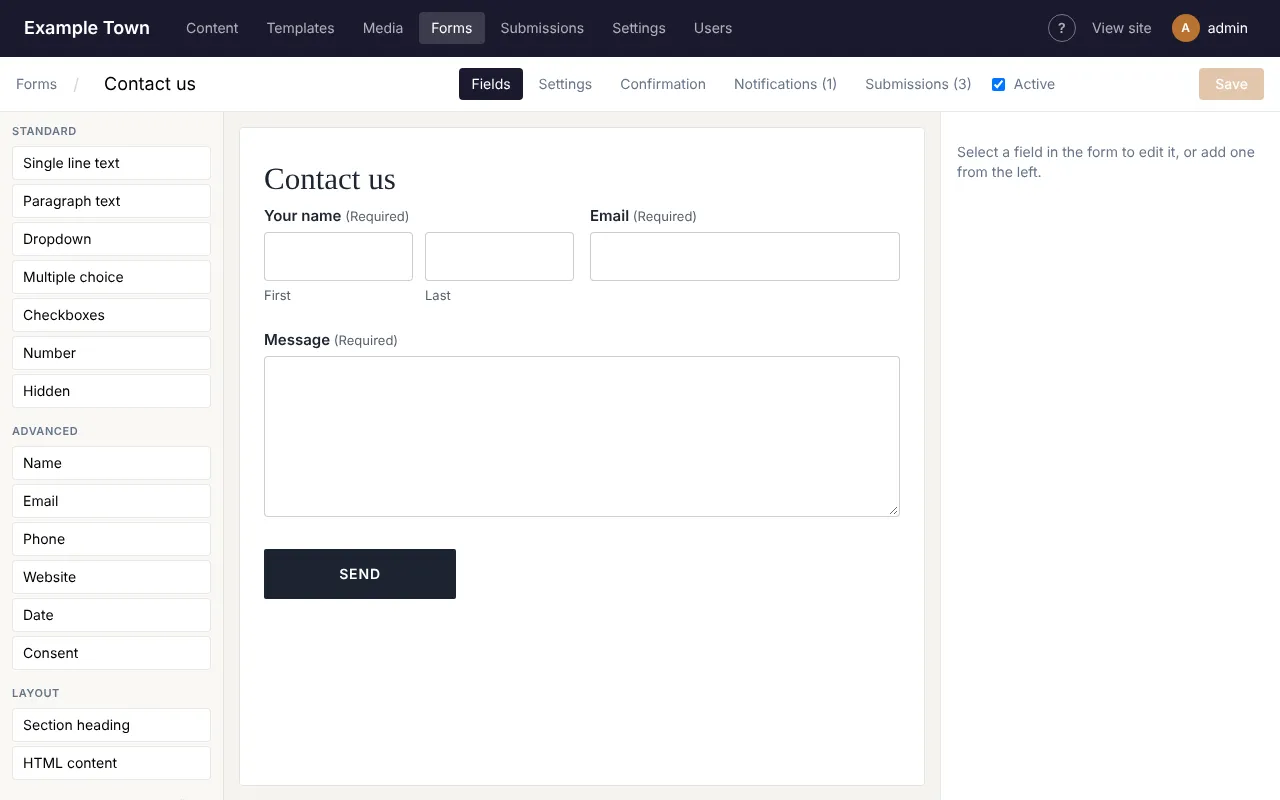
- On the Fields tab, add the questions you want to ask. Click a field type on the left to add it, or drag it into the form. Drag fields in the form to change their order.
- Click a field in the form to change its label, make it required, or add a hint.
- Click Save in the top right.
Field types
Section titled “Field types”| Field | Use it for |
|---|---|
| Single line text | Short answers, such as a business name. |
| Paragraph text | Longer answers, such as a message. |
| Dropdown, Multiple choice, Checkboxes | Picking from a list of options. |
| Name | First and last name boxes side by side. |
| Email, Phone, Website, Date, Number | Checked so people enter them properly. |
| Consent | A tick box such as “I agree to be contacted”. |
| Section heading | A heading to break up a long form. |
The other tabs
Section titled “The other tabs”- Settings: a description shown above the form, the button’s wording and how labels are placed.
- Confirmation: what people see after sending: a thank-you message, or another page.
- Notifications: who gets an email when the form is sent (see below).
- Submissions: what people have sent through this form.
- Active: untick to stop the form taking new answers without removing it from pages.
Getting an email when someone sends the form
Section titled “Getting an email when someone sends the form”On the Notifications tab:
- Send to: the email addresses to notify, separated by commas.
- Reply-to: leave this as it is, so that replying to the email goes straight to the visitor.
- Subject: the email’s subject line. Insert field value adds an answer to it, such as the visitor’s name.
- Click Edit email to design the email itself, or leave it as it is to receive all the answers.
- Click Save.
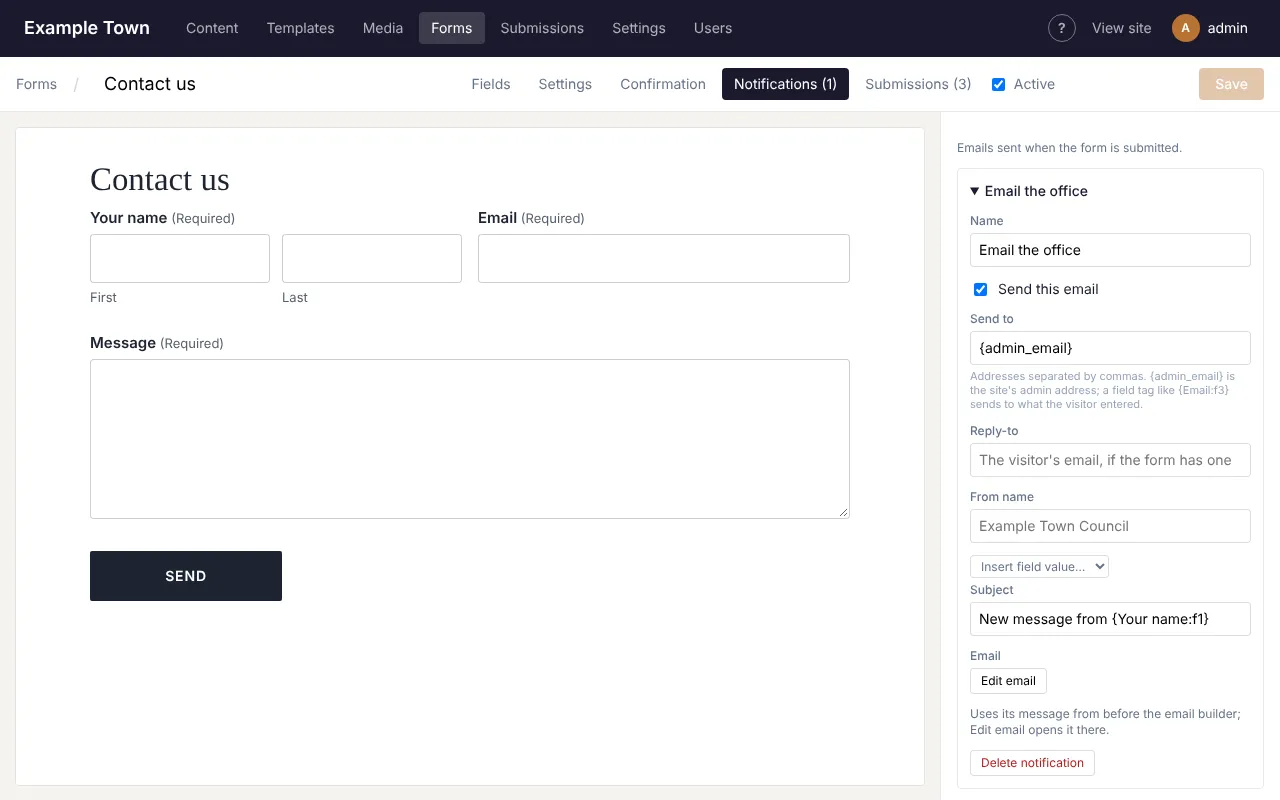
You can add more than one notification, for example one to your office and a “thanks, we got your message” email to the visitor (put the form’s email field in Send to).
Putting a form on a page
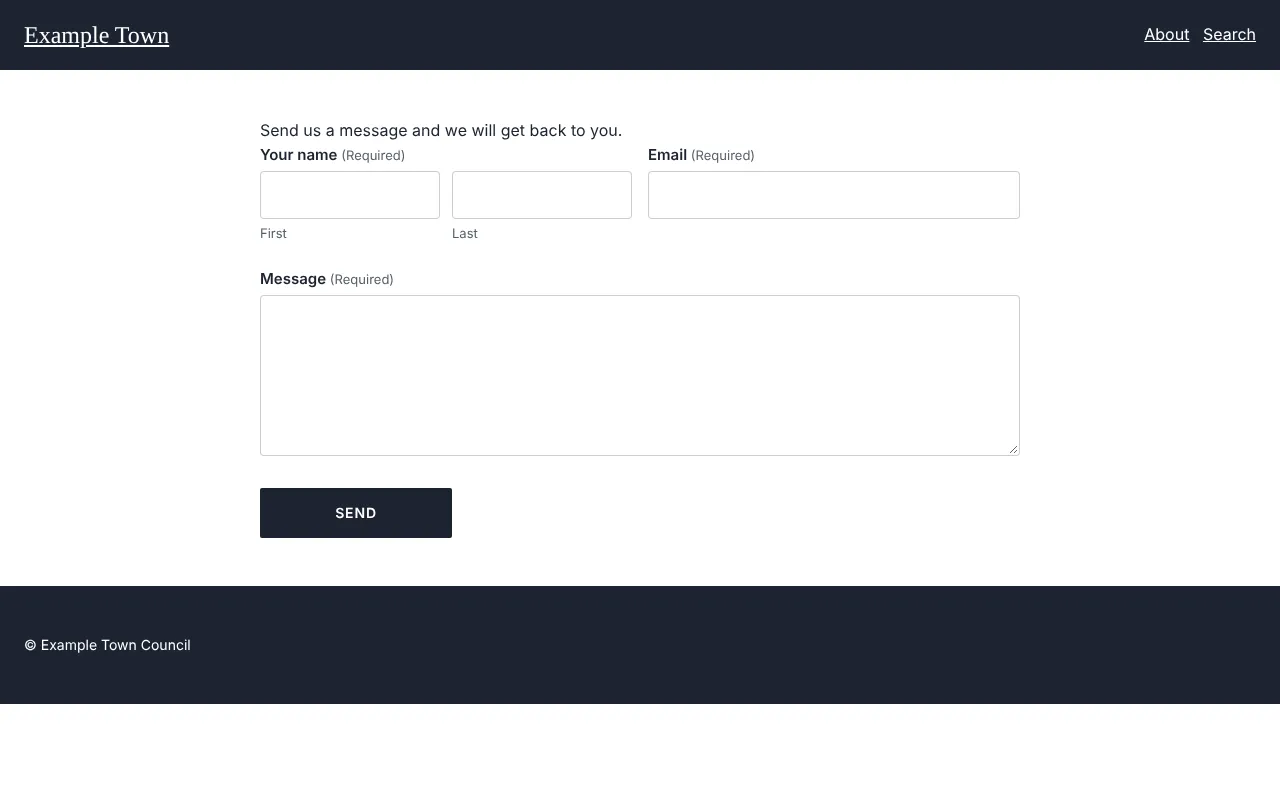
Section titled “Putting a form on a page”- Open the page in the editor.
- Drag the Form block onto the page.
- With the block selected, choose your form from the Form list on the right.
- Publish the page.
The same form can be on several pages.
Reading what people sent
Section titled “Reading what people sent”Click Submissions in the top bar. The newest are at the top; pick a form from All forms to see only that form’s. Click one to read it in full.
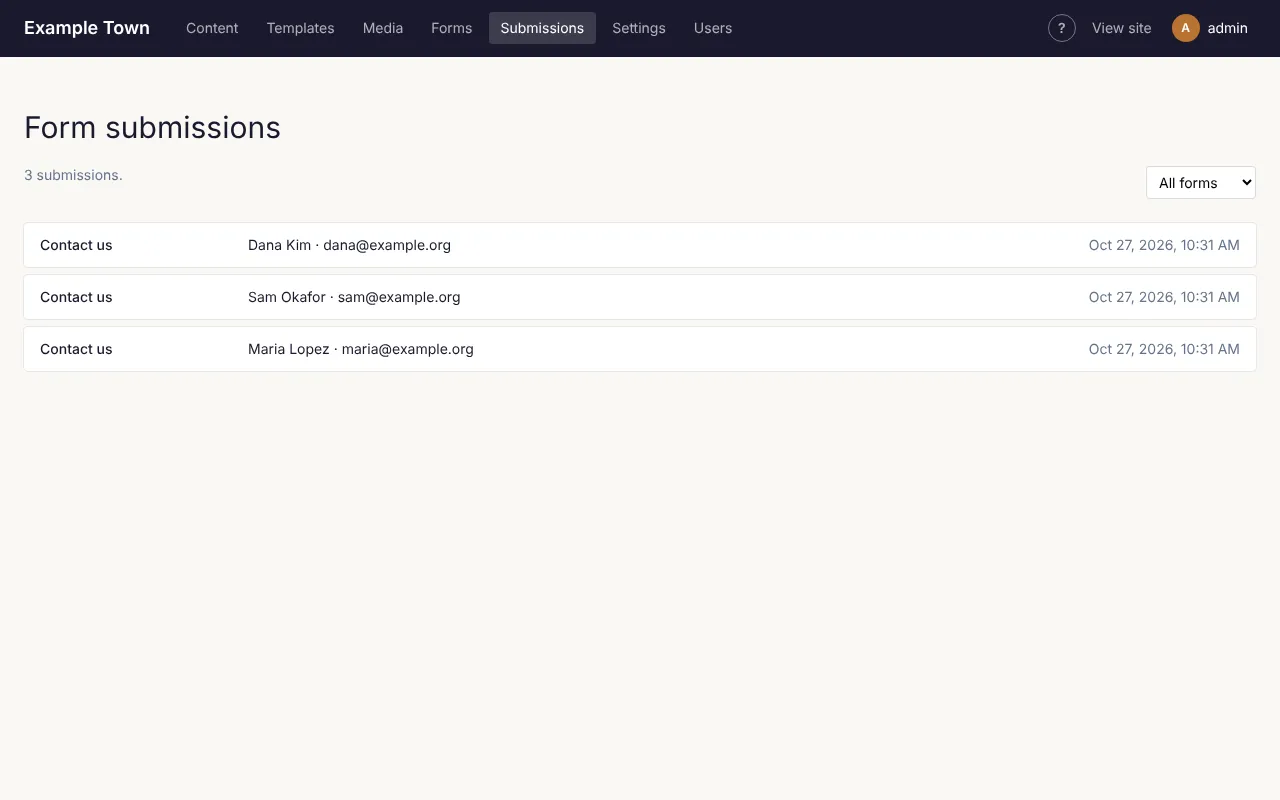
From a submission you can Reply by email, jump to Edit form, or Delete it.
To download a form’s submissions as a spreadsheet (for Excel or Google Sheets), pick the form from All forms, then click Export CSV.
Taking payments
Section titled “Taking payments”If your site is set up for card payments, a form can also take money, for example for a donation or a registration fee. A Payment tab appears in the form builder, and Pricing fields on the left. Ask your admin if you’d like this turned on.