Using the page editor
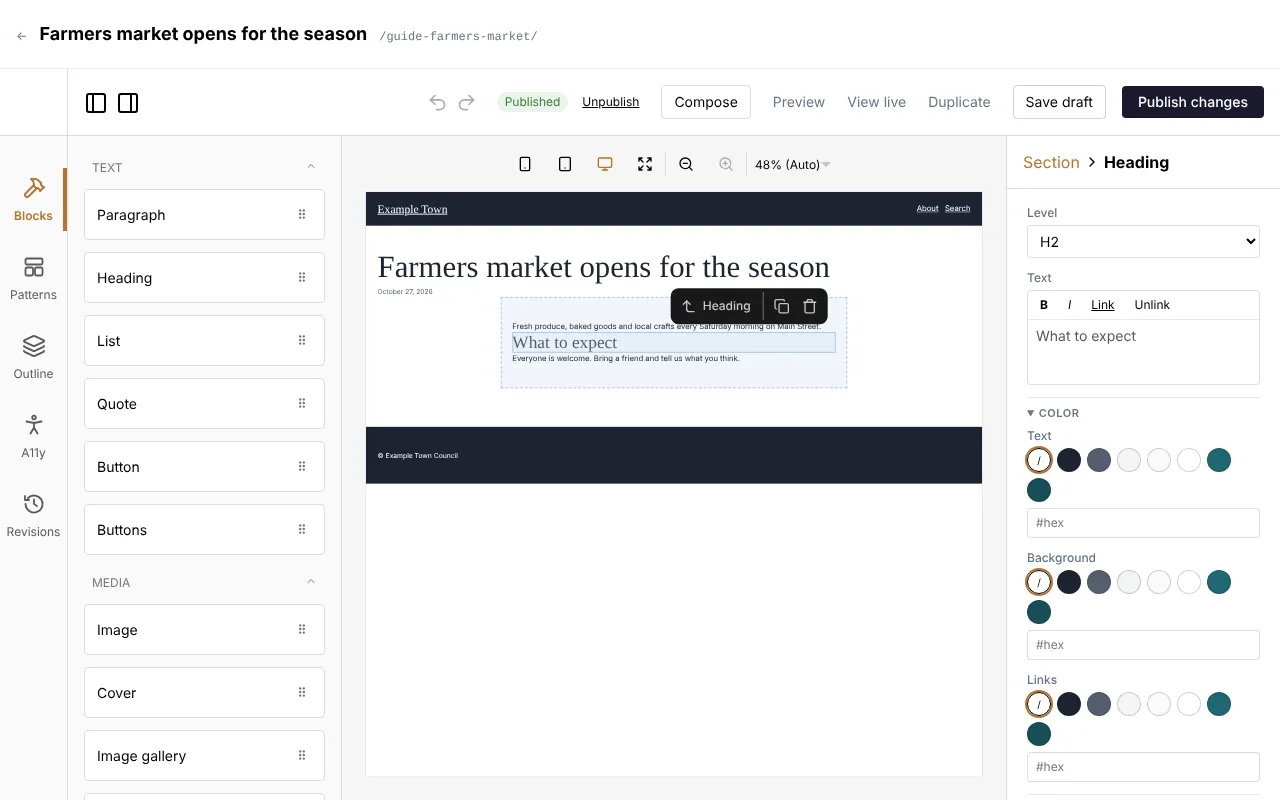
When you open a page, the editor shows it as it will look on your site. It has four areas:
- The middle is the page itself. Click anything on it to select it.
- The left side has the building blocks you can add (Blocks), ready-made sections (Patterns), a list of everything on the page (Outline), an accessibility check (A11y) and earlier versions (Revisions).
- The right side shows the settings of whatever you selected. With nothing selected, it shows the page’s own settings: title, address, featured image, tags and so on.
- The top has the buttons to save, preview and publish.
Blocks
Section titled “Blocks”A page is made of blocks stacked one under the other: a heading, a paragraph, an image, a row of buttons, and so on.
To add a block: drag it from the Blocks list on the left onto the page, to where you want it. A line shows where it will land.
To change a block: click it on the page. Its settings appear on the right. For text, you can also click into the words and type.
To move a block: drag it by its handle, or use the arrows in the small toolbar that appears above it when it is selected.
To copy or remove a block: select it and use the copy or bin icon in that small toolbar.
Common blocks
Section titled “Common blocks”| Block | Use it for |
|---|---|
| Heading | A title for a section of the page. |
| Paragraph | Ordinary text. Select words to make them bold, italic or a link (see Links below). |
| List | Bullet points or numbered steps. |
| Image | One picture. |
| Image gallery | Several pictures as a grid or a slider. |
| Button / Buttons | A link styled as a button, such as “Book now”. |
| Hero | A large picture across the top of a page, with a title and buttons. Overlay darkens the picture so the text stays readable. |
| Cover | A picture with text laid over it. Its Overlay can be even, or a gradient from the bottom or left, where the text sits. |
| Media & text | A picture beside some text. |
| Columns | Puts blocks side by side. |
| Section | Groups blocks, with a background colour or spacing around them. |
| Form | One of your forms. |
| File | A link to a document (a PDF, say) with its type, size and a Download button. |
| Collection | An automatic list of your latest posts, events or other content. |
Your site may have extra blocks of its own, made for its design.
Blocks inside blocks
Section titled “Blocks inside blocks”Some blocks, like Section and Columns, hold other blocks. Drag blocks into them. The Outline on the left shows how everything is nested, and clicking a line there selects that block, which helps when blocks are hard to click on the page.
Copying a block’s look
Section titled “Copying a block’s look”To make one block look like another, select the block whose look you like, scroll to the end of its settings and click Copy styles. Then select the other block and click Paste styles. Its colours, spacing, text style and borders change to match; its words and pictures stay as they are. Between two blocks of the same kind (two sections, say) the layout comes too: alignment, gaps, height and overlay.
The copy stays in your browser, so you can paste it on another page or in a pattern. Changed your mind? Click Undo.
To make a link, select some words in a text box and click Link above it. Boxes that take a link (a button’s Link, a menu item’s Link and other link boxes) have Find beside them. Then:
- To a page on your site: start typing its title and pick it from the list (use the arrow keys and Enter, or click it).
- To a file: click Media library and pick a picture or a document.
- To another website: paste its address (such as
https://example.org). Email addresses and phone numbers work too.
Links to other websites open in a new tab unless you untick Open in a new tab. To change or remove a link, put the cursor in it and click Link again.
Patterns
Section titled “Patterns”Patterns are ready-made groups of blocks, such as a “call to action” band or a team section, already styled to match your site. Drag one from the Patterns tab onto the page, then change the words and pictures.
To reuse something you built, select its outer block and click Save as pattern at the bottom of its settings.
The page’s settings
Section titled “The page’s settings”Click an empty part of the page (or press Escape until nothing is selected) to see the page’s settings on the right:
- Title: the page’s name, shown at the top of the page and in the browser tab.
- Slug: the page’s address.
- Template: the layout around the page. Usually leave this as it is.
- Excerpt: a sentence or two summing up the page, shown in lists of pages.
- Featured image: the picture used for this page in lists and when it is shared on social media.
- Tags and categories: see Pages and posts.
- SEO: how the page appears in Google. Generate can write these for you.
- Hide from search engines and AI answer engines asks Google and the like not to list the page, and the tools behind ChatGPT, Claude, Perplexity and Google’s AI answers not to read it. Use it for pages only your members or partners need, for example.
- Leave out of this site’s search stops the page appearing in your own site’s search (it still shows in menus and lists).
Events and other kinds of content have their own extra settings here too, such as dates and venues.
The header, footer and templates
Section titled “The header, footer and templates”The parts that appear on every page, such as the header, menu and footer, aren’t part of each page. They are in Templates. When you hover over them in the editor, admins see a link to edit them.
Some pages are made entirely from their template (a home page, often). When you open one, a line under the editor’s toolbar says Editing this page’s template, and the button says Save & apply: changes go to every page using that template.
To start a new page from a template or a pattern, click Make a page beside it in Templates (or at the top of the editor while editing it). Give the page a title, choose its type and click Make the page. You get a new draft with a copy of the template’s blocks to change freely: editing it never changes the template.
The menu’s links are changed under Settings, not in the header itself. See Menu and settings.